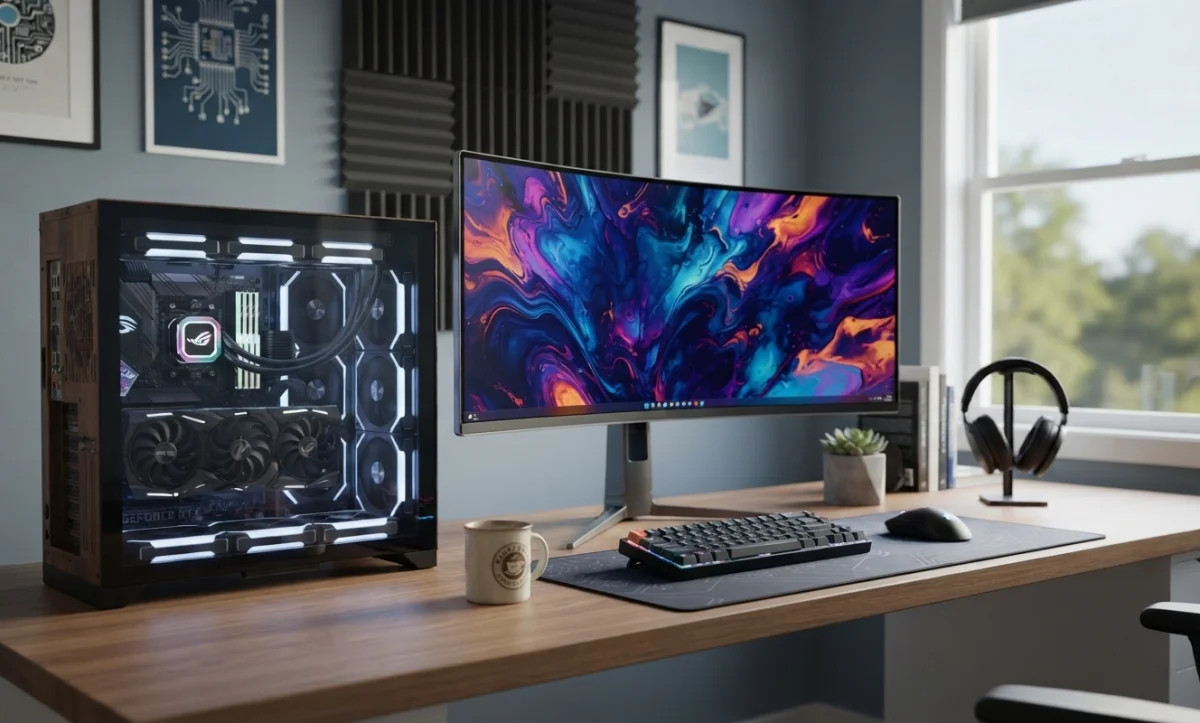
Computer Freezing: Causes, Troubleshooting, and Prevention
Computer Freezing: Causes, Troubleshooting, and Prevention
A computer that suddenly freezes can be frustrating, especially when the mouse and keyboard stop responding or an application becomes completely unresponsive. Computer freezing can happen occasionally because of a temporary software problem, but frequent freezes may indicate a more serious hardware, driver, operating system, storage, or security issue.
Understanding the cause of computer freezing is important because repeatedly forcing a computer to shut down can potentially result in lost work, corrupted files, or Windows startup problems. This guide explains the most common reasons a computer freezes and provides practical troubleshooting steps for Windows computers.
What Does It Mean When a Computer Freezes?
A computer freeze occurs when the operating system or an application stops responding to normal commands. The mouse pointer may stop moving, the keyboard may not respond, applications may become stuck, or the entire screen may appear frozen.
Not every apparent freeze means the computer has completely crashed. Some programs may temporarily become unresponsive while performing a demanding task. However, if the computer remains frozen for an extended period and does not recover, further troubleshooting may be necessary.
Common Signs of a Frozen Computer
A frozen computer may display one or more of the following symptoms:
- The mouse pointer stops moving.
- The keyboard does not respond.
- Applications display "Not Responding."
- The screen becomes completely unresponsive.
- Audio becomes stuck or repeats continuously.
- Windows stops responding to normal commands.
- Ctrl + Alt + Delete does not open the security screen.
- The computer freezes during gaming or other demanding tasks.
- The computer freezes randomly without an obvious pattern.
- The system repeatedly freezes and requires a forced restart.
Common Causes of Computer Freezing
1. Insufficient RAM
Random access memory (RAM) is used by Windows and applications to temporarily store information while the computer is operating. When available memory becomes very low, Windows may become extremely slow or applications may stop responding.
Running many applications, browser tabs, virtual machines, games, or other memory-intensive programs simultaneously can increase RAM usage and potentially cause severe system slowdowns or freezing.
2. Overheating
Excessive heat is another common cause of computer instability. A CPU or graphics processor operating at very high temperatures may reduce its performance to protect itself. In severe cases, overheating can contribute to crashes, freezes, or unexpected shutdowns.
Dust buildup, blocked ventilation, failing fans, poor airflow, or dried thermal paste can contribute to excessive temperatures.
3. Driver Problems
Hardware drivers allow Windows to communicate with components such as graphics cards, network adapters, audio devices, chipsets, and storage controllers.
A corrupted, outdated, incompatible, or incorrectly installed driver can cause system instability. Graphics drivers are particularly important if freezing occurs while playing games, watching videos, or using graphics-intensive applications.
4. Windows Problems
Corrupted system files, incomplete updates, damaged Windows components, or configuration problems can cause Windows to become unstable.
If freezing started after a major Windows update or software change, the recent change should be considered as a possible cause.
5. Hard Drive or SSD Problems
Storage devices can develop errors or hardware failures over time. A failing hard disk drive (HDD) or SSD may cause Windows to pause while attempting to read or write data.
Frequent freezes accompanied by unusually slow file access, unusual drive noises, missing files, or disk-related error messages may indicate a storage problem.
6. Software Conflicts
Two programs or services may sometimes conflict with each other. This can happen after installing new software, security applications, utilities, drivers, or system-management tools.
If the freezing problem started soon after installing a particular program, temporarily uninstalling or disabling that software can help determine whether it is responsible.
7. Malware or Viruses
Malware can consume CPU, memory, storage, or network resources and may interfere with normal Windows operations. Some infections can also modify system files or services.
If freezing is accompanied by unexpected pop-ups, unfamiliar applications, browser redirects, unusual network activity, or other suspicious behavior, perform a security scan.
8. Too Many Background Processes
Windows and installed applications can run numerous background processes. Some applications automatically start with Windows and continue consuming system resources even when they are not actively being used.
Excessive background activity can contribute to high CPU, memory, or disk usage and may make the computer appear frozen.
9. Graphics Card Problems
Graphics-related freezing may occur during gaming, video editing, 3D applications, or other demanding workloads. Possible causes include graphics driver problems, excessive GPU temperatures, insufficient power, hardware faults, or unstable graphics settings.
10. Hardware Failure
A defective component can cause intermittent system freezes. Possible hardware causes include faulty RAM, a failing storage device, overheating components, motherboard problems, power-supply issues, or graphics card faults.
What to Do When Your Computer Freezes
Step 1: Wait Briefly
First, wait for a short period before forcing the computer to shut down. Some applications may temporarily stop responding while processing a large file, installing an update, loading a game, or performing another demanding operation.
If the computer recovers, save your work immediately and investigate what caused the temporary freeze.
Step 2: Try Ctrl + Alt + Delete
Press Ctrl + Alt + Delete. If the Windows security screen appears, the operating system may still be functioning.
From there, you can open Task Manager and identify applications that are consuming excessive CPU, memory, or disk resources.
Step 3: Use Task Manager
If Task Manager opens, check the CPU, Memory, Disk, and GPU usage columns. An application consistently using an unusually high amount of a resource may be contributing to the problem.
If a specific application is marked as "Not Responding," you can select it and choose End task. Be aware that unsaved work in that application may be lost.
Step 4: Restart the Computer
If Windows remains responsive enough to restart normally, use the standard Windows restart option.
A normal restart clears temporary system states and reloads Windows services, drivers, and applications. It can resolve some temporary freezing problems.
Step 5: Perform a Forced Shutdown Only When Necessary
If the computer is completely unresponsive and cannot be restarted normally, a forced shutdown may be necessary.
Press and hold the computer's power button until the system switches off. Wait several seconds and then turn it back on.
Forced shutdowns should not be used routinely because abruptly cutting power can result in unsaved work being lost and may increase the risk of file-system or data corruption.
How to Troubleshoot Frequent Computer Freezing
Check CPU and Memory Usage
Open Task Manager and monitor system resources when the computer becomes slow. High CPU or memory usage may identify the application responsible for the problem.
Check Available Storage
Ensure that the Windows system drive has sufficient free space. A drive that is nearly full can cause performance and update problems.
Remove unnecessary temporary files, old downloads, unused applications, and other files that are no longer needed.
Update Windows
Check Windows Update for available updates. Microsoft regularly releases security updates, bug fixes, compatibility improvements, and driver updates.
If freezing began immediately after a Windows update, however, investigate the update history and consider whether the recent update or driver change is related to the problem.
Update or Reinstall Drivers
Check important drivers, especially graphics, chipset, storage, network, and audio drivers. If the problem started after a driver update, rolling back to a previous stable version may help.
Run a Malware Scan
Use a reputable security solution to perform a malware scan. Windows includes built-in security features that can detect many common threats.
Avoid installing multiple full-time antivirus programs because they may conflict with each other and consume unnecessary system resources.
Check System Files
Windows provides built-in tools that can check and repair certain corrupted system files. The System File Checker and Deployment Image Servicing and Management tools can be useful when Windows components are suspected of being damaged.
These tools should be used carefully and preferably according to Microsoft's recommended procedures, particularly when diagnosing persistent Windows problems.
Test the RAM
Faulty memory can cause random freezes, crashes, application errors, and other unpredictable behavior.
Windows includes a built-in memory diagnostic utility that can be used as an initial check. For persistent problems, a more comprehensive memory test may be appropriate.
Check the Storage Drive
Check the health and condition of the HDD or SSD if freezing occurs frequently during file operations or Windows startup.
If a drive shows signs of failure, back up important data as soon as possible. Do not wait for the drive to fail completely before attempting data recovery.
Why Does My Computer Freeze While Gaming?
Gaming places a heavy workload on the CPU, GPU, RAM, and storage system. Freezing during games may therefore have a different cause from freezing during normal desktop use.
Common gaming-related causes include:
- High CPU or GPU temperatures.
- Outdated or corrupted graphics drivers.
- Insufficient RAM or video memory.
- Unstable overclocking settings.
- Insufficient or unstable power delivery.
- Damaged game files.
- High graphics settings.
- Background applications consuming system resources.
Monitoring CPU and GPU temperatures and testing the computer at lower graphics settings can help determine whether the problem is related to system load.
Why Does My Computer Freeze Randomly?
Random freezing is often more difficult to diagnose because the problem may not occur consistently. Keep track of when the freezing happens and what the computer was doing immediately beforehand.
For example, note whether the freeze occurs during startup, web browsing, gaming, file transfers, video playback, or when the computer is idle. A pattern can help identify whether the problem is related to software, temperature, storage, memory, or another component.
How to Prevent Computer Freezing
- Keep Windows and important drivers updated.
- Maintain adequate free storage space.
- Keep computer ventilation openings clean.
- Monitor temperatures if the system frequently becomes hot.
- Remove unnecessary startup applications.
- Install software from trusted sources.
- Use reliable security software.
- Avoid unnecessary overclocking.
- Back up important files regularly.
- Replace failing hardware before it causes data loss.
When Should You Contact a Computer Technician?
Professional assistance may be appropriate if the computer continues freezing after basic troubleshooting or if there are signs of hardware failure.
Consider professional diagnosis when:
- The computer freezes repeatedly every day.
- Windows freezes immediately after startup.
- The system freezes even when no applications are running.
- The computer shuts down or restarts unexpectedly.
- The storage drive produces unusual noises or errors.
- Memory tests report errors.
- The computer becomes extremely hot before freezing.
- Important files become inaccessible.
- Freezing continues after Windows and driver troubleshooting.
Conclusion
Computer freezing can be caused by many different factors, ranging from temporary software problems to serious hardware failures. Common causes include insufficient RAM, overheating, driver conflicts, Windows problems, storage errors, malware, excessive background processes, and defective hardware.
Start by determining whether the freeze is temporary or completely persistent. Check Task Manager, system temperatures, available storage, Windows updates, drivers, security status, RAM, and storage health. If freezing continues despite troubleshooting, a professional hardware and software diagnosis can help identify the underlying problem.
Regular maintenance, adequate ventilation, sufficient storage space, updated software, reliable backups, and early detection of hardware problems can significantly reduce the risk of repeated computer freezing.
Related Articles
 Windows
Forgotten Windows Password: How to Recover Access to Your Computer
Forgotten your Windows password? Learn safe and legitimate ways to regain access to Windows using Microsoft account…
 Windows
Driver Problems: Common Causes and How to Fix Windows Driver Issues
Driver problems can cause hardware devices to stop working, produce error messages, crash Windows, or perform poorly.…
 Windows
Windows Activation Problems: Common Causes and How to Fix Them
Windows activation problems can prevent the operating system from being properly activated and may display activation…
Comments (0)
No comments yet. Be the first to share your experience!
Leave a comment