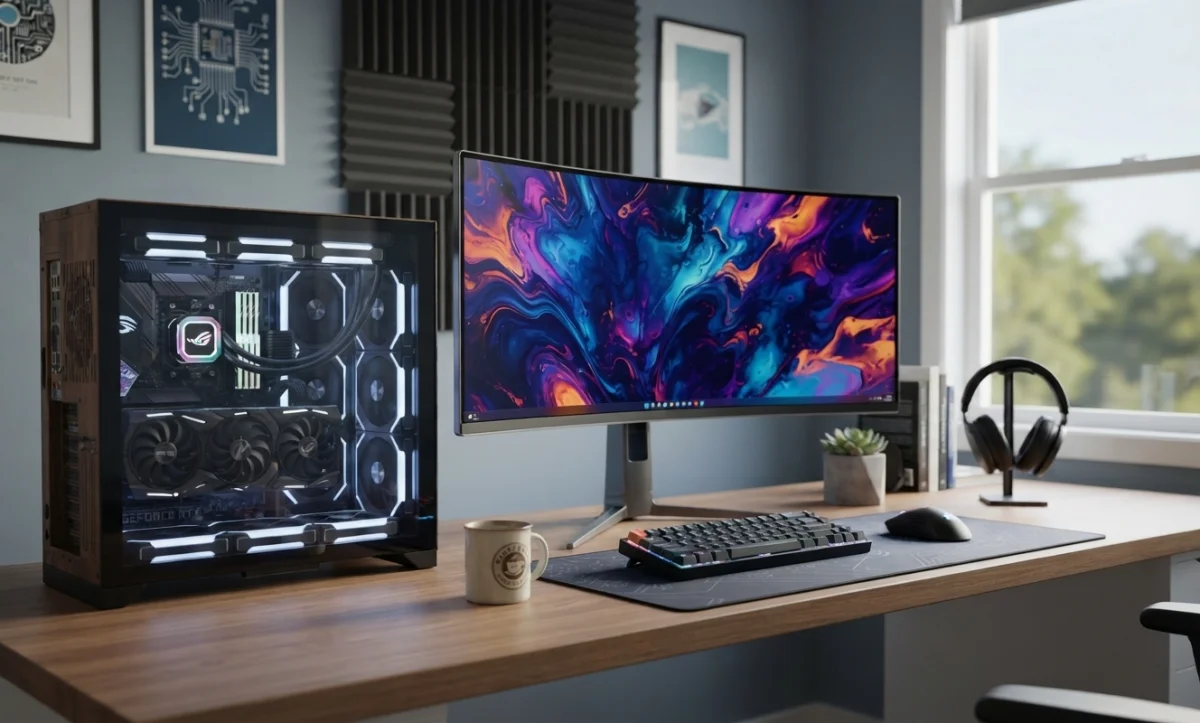
Computer Overheating: Causes, Symptoms and How to Fix It
Computer Overheating: Causes, Symptoms and How to Fix It
URL Slug: computer-overheating-causes-symptoms-fixes
Short Description:
Computer overheating can cause slow performance, system crashes, unexpected shutdowns and hardware damage. Learn the common causes of overheating, how to diagnose the problem and practical steps to keep your computer running at a safe temperature.
What Is Computer Overheating?
Computer overheating occurs when the internal temperature of a computer rises beyond the level its components are designed to handle safely. Modern computers contain several components that generate heat during operation, including the CPU, graphics processing unit (GPU), power supply and storage devices.
Under normal conditions, the computer's cooling system removes this heat using fans, heatsinks, thermal compounds and, in some systems, liquid cooling. When the cooling system cannot remove heat efficiently, temperatures can rise and cause performance problems or system instability.
Occasional increases in temperature during demanding tasks such as gaming, video editing or 3D rendering are normal. However, consistently high temperatures or sudden overheating should be investigated.
Common Symptoms of an Overheating Computer
Computer overheating can produce several warning signs. Identifying these symptoms early can help prevent more serious hardware problems.
- Computer becomes unusually slow or unresponsive.
- Fans run constantly or become unusually loud.
- Computer suddenly shuts down or restarts.
- Applications frequently crash or freeze.
- Blue Screen of Death (BSOD) errors occur.
- Games experience stuttering or sudden performance drops.
- The computer case feels excessively hot.
- Laptop surfaces become very hot during normal use.
- System performance decreases after prolonged use.
- The computer shuts down during demanding tasks.
Common Causes of Computer Overheating
1. Dust and Dirt Accumulation
Dust is one of the most common causes of overheating. Over time, dust can accumulate around fans, heatsinks, air vents and filters. This restricts airflow and prevents heat from being removed efficiently.
Desktop computers that are placed on the floor can be particularly susceptible to dust accumulation. Laptops can also develop blocked ventilation when used on beds, sofas or other soft surfaces.
2. Blocked Air Vents
Computers need adequate airflow to maintain a safe operating temperature. Blocking the ventilation openings can cause hot air to remain inside the computer.
For laptops, avoid placing the computer on blankets, pillows or soft furniture. Use a hard, flat surface that allows air to circulate around the ventilation openings.
3. Failed or Slow Cooling Fans
Cooling fans are responsible for moving air through the computer. A fan that has failed, become clogged with dust or is rotating too slowly may not provide sufficient cooling.
Unusual fan noises, rattling, grinding or a fan that does not spin can indicate a cooling problem.
4. Dried or Poor Thermal Paste
Thermal paste is applied between components such as the CPU and heatsink to improve heat transfer. Over time, thermal paste can dry out or lose some of its effectiveness.
If the CPU temperature remains unusually high despite having clean fans and adequate airflow, replacing the thermal paste may help. This procedure should be performed carefully because incorrect installation can cause additional problems.
5. High CPU or GPU Usage
Intensive applications can generate significant amounts of heat. Video games, video editing software, 3D rendering applications, virtual machines and other demanding workloads can place heavy loads on the CPU and GPU.
High temperatures during heavy workloads do not necessarily indicate a fault. However, if temperatures become excessive or the computer starts shutting down, the cooling system should be checked.
6. Poor Computer Case Airflow
Desktop computers require a good balance between intake and exhaust airflow. Poorly positioned fans, blocked vents or excessive cables inside the case can interfere with airflow.
A well-designed airflow configuration generally allows cool air to enter the case while warm air is expelled.
7. High Room Temperature
Ambient temperature also affects computer temperatures. A computer operating in a hot room has less opportunity to dissipate heat effectively.
Keeping the computer in a cool, well-ventilated environment can help improve thermal performance.
8. Malware or Unwanted Background Processes
Malware or poorly optimized software can sometimes cause unusually high CPU or GPU usage. This additional workload can increase heat generation even when the computer appears to be idle.
If your computer is unexpectedly using a large amount of system resources, check Task Manager or an equivalent system-monitoring utility to identify processes consuming excessive resources.
How to Check if Your Computer Is Overheating
The first step in troubleshooting overheating is to monitor the temperatures of the CPU, GPU and other components where appropriate.
Many computers provide temperature information through BIOS/UEFI firmware or manufacturer utilities. Third-party hardware monitoring applications can also provide temperature and fan-speed information.
Instead of relying on one temperature number for every computer, compare the readings with the manufacturer's specifications for the particular CPU or GPU. Different processors and graphics cards have different thermal limits.
How to Fix a Computer That Is Overheating
1. Clean the Computer
Turn off the computer and disconnect the power before cleaning it. Remove accumulated dust from ventilation openings, fans and heatsinks using appropriate cleaning equipment.
Take care when cleaning fans so they are not damaged by excessive spinning or aggressive handling.
2. Improve Airflow
Make sure the computer has sufficient space around its air intake and exhaust openings. For desktop systems, check that case fans are installed correctly and that airflow is not obstructed.
3. Check the Cooling Fans
Inspect the CPU, GPU and case fans for abnormal noise or failure to spin. A defective fan should normally be replaced rather than ignored.
4. Replace Thermal Paste When Necessary
If the CPU heatsink has been removed, or if the thermal interface material is old and ineffective, replacing the thermal paste may improve heat transfer.
Thermal paste should be applied according to the CPU and cooler manufacturer's recommendations. Excessive or insufficient application can reduce cooling effectiveness.
5. Reduce Unnecessary Background Processes
Open Task Manager in Windows and check which applications and processes are using significant CPU or GPU resources. Close unnecessary applications and investigate programs that consistently consume unusually high resources.
6. Update Drivers and Software
Outdated or problematic drivers can sometimes cause excessive hardware usage. Keep Windows, device drivers and important applications updated, particularly graphics drivers for systems used for gaming or graphics-intensive work.
7. Improve the Computer's Environment
Move the computer away from direct sunlight, enclosed cabinets and other sources of heat. Ensure there is adequate ventilation around the system.
8. Consider Upgrading the Cooling System
High-performance computers may require better cooling. Depending on the system, possible upgrades include additional case fans, a better CPU cooler or an appropriately designed liquid-cooling solution.
How to Prevent Computer Overheating
Preventive maintenance is usually easier and less expensive than repairing hardware damaged by excessive heat. Follow these practices to maintain good cooling performance:
- Clean dust from the computer regularly.
- Keep air vents unobstructed.
- Place desktop computers in a well-ventilated location.
- Use laptops on hard, flat surfaces.
- Monitor CPU and GPU temperatures during demanding workloads.
- Check cooling fans periodically.
- Keep Windows and hardware drivers updated.
- Remove unnecessary applications that consume system resources.
- Keep the computer away from direct sunlight and heat sources.
- Ensure the computer case has adequate airflow.
When Should You Contact a Computer Technician?
Some overheating problems can be resolved through cleaning and improving airflow. However, professional assistance may be appropriate if the computer continues to overheat after basic troubleshooting.
Consider contacting a qualified computer technician if the system repeatedly shuts down, the cooling fan has failed, temperatures remain unusually high, the CPU cooler needs to be removed, or there are signs of hardware damage.
Avoid continuing to operate a computer that repeatedly shuts down because of excessive temperatures. Persistent overheating can contribute to system instability and may shorten the useful life of certain components.
Conclusion
Computer overheating is a common problem that can affect desktops and laptops alike. Dust, blocked ventilation, faulty fans, poor airflow, high workloads and inadequate cooling are among the most common causes.
Regular cleaning, proper ventilation, temperature monitoring and timely maintenance can significantly reduce the risk of overheating. If the problem persists despite basic troubleshooting, professional diagnosis can help identify defective cooling components or other underlying hardware issues.
Related Articles
 Hardware
How to Clone Your Hard Drive to an SSD
Work-in-progress guide on cloning Windows to a new SSD using free tools.
 Hardware
How to Extend the Life of Your SSD
Practical tips to keep your SSD healthy and fast for years.
 Hardware
How to Diagnose a Dead Desktop PC: Step-by-Step Guide
PC won't power on at all? Beeps but no display? Work through this logical checklist to find the faulty component fast.
Comments (0)
No comments yet. Be the first to share your experience!
Leave a comment