Ethernet / LAN Not Working: Common Causes and How to Fix It
Ethernet / LAN Not Working: Common Causes and How to Fix It
Ethernet provides a reliable wired connection between a computer and a router, modem, switch, or other network device. Compared with Wi-Fi, Ethernet connections are often preferred for desktop computers, gaming, business networks, and other situations where a stable connection is important.
However, an Ethernet or LAN connection can sometimes stop working. Windows may show "No Internet," "Unidentified network," or "Network cable unplugged," or the Ethernet adapter may not appear to work at all. The cause can range from a damaged network cable to incorrect network settings, a faulty router port, driver problems, or a defective network adapter.
This guide explains the most common Ethernet and LAN problems and provides practical steps to diagnose and resolve them.
What Is an Ethernet or LAN Connection?
Ethernet is a wired networking technology used to connect computers and other devices to a local area network (LAN). A typical home or office setup connects a computer to a router or network switch using an Ethernet cable.
The router or network equipment then provides access to other devices on the local network and, when configured for Internet access, connects the computer to the Internet.
Common Symptoms of an Ethernet Problem
Ethernet problems can appear in several different ways. Common symptoms include:
- Ethernet shows "No Internet."
- Windows reports an "Unidentified network."
- The Ethernet connection keeps disconnecting.
- Windows reports that the network cable is unplugged.
- The Ethernet adapter is missing from Windows.
- Internet works over Wi-Fi but not Ethernet.
- Ethernet connects but there is no Internet access.
- The connection is unusually slow.
- The computer cannot obtain an IP address.
- Network devices cannot communicate with the computer.
- The Ethernet connection stops working after a Windows update.
Common Causes of Ethernet / LAN Problems
1. Faulty or Loose Ethernet Cable
A damaged or poorly connected Ethernet cable is one of the easiest causes to overlook. Ethernet cables can become damaged from bending, pulling, crushing, or repeated use.
Make sure the cable is securely connected to both the computer and the router or network switch. If possible, test with another known-good Ethernet cable.
2. Faulty Router or Switch Port
The Ethernet port on a router, modem, or network switch can fail or become unreliable. If one port does not work, try connecting the computer to another available LAN port.
Many Ethernet ports also have small status LEDs. Depending on the equipment, these lights may indicate that a physical network connection has been established.
3. Network Adapter Is Disabled
Windows allows network adapters to be enabled or disabled. If the Ethernet adapter has been disabled, the computer will not be able to establish a wired network connection.
Check the Windows network settings and confirm that the Ethernet adapter is enabled.
4. Network Driver Problems
Ethernet adapters depend on device drivers to communicate correctly with Windows. A missing, corrupted, outdated, or incompatible driver can cause the network adapter to stop working.
Driver problems can sometimes occur after Windows upgrades, driver changes, or hardware modifications.
5. Incorrect IP Configuration
Computers normally obtain network configuration information automatically from a router using DHCP. If the computer has an incorrect IP address, subnet configuration, gateway, or other network settings, it may connect to the physical network but fail to communicate correctly.
6. DNS Problems
DNS translates website names into IP addresses. A computer may appear to be connected to the network while still being unable to access websites if DNS resolution is not working correctly.
DNS problems can sometimes be distinguished from a complete network failure because local network connectivity may continue to work while website names cannot be resolved.
7. Router or Modem Problems
The computer may not be responsible for the problem. A router, modem, or Internet service problem can prevent an otherwise healthy Ethernet connection from reaching the Internet.
Check whether other devices connected to the same network can access the Internet.
8. Network Configuration Changes
VPN software, proxy settings, security applications, virtual networking software, and manual network configuration can sometimes affect normal network connectivity.
If the Ethernet connection stopped working after installing or changing network-related software, review those changes.
9. Hardware Failure
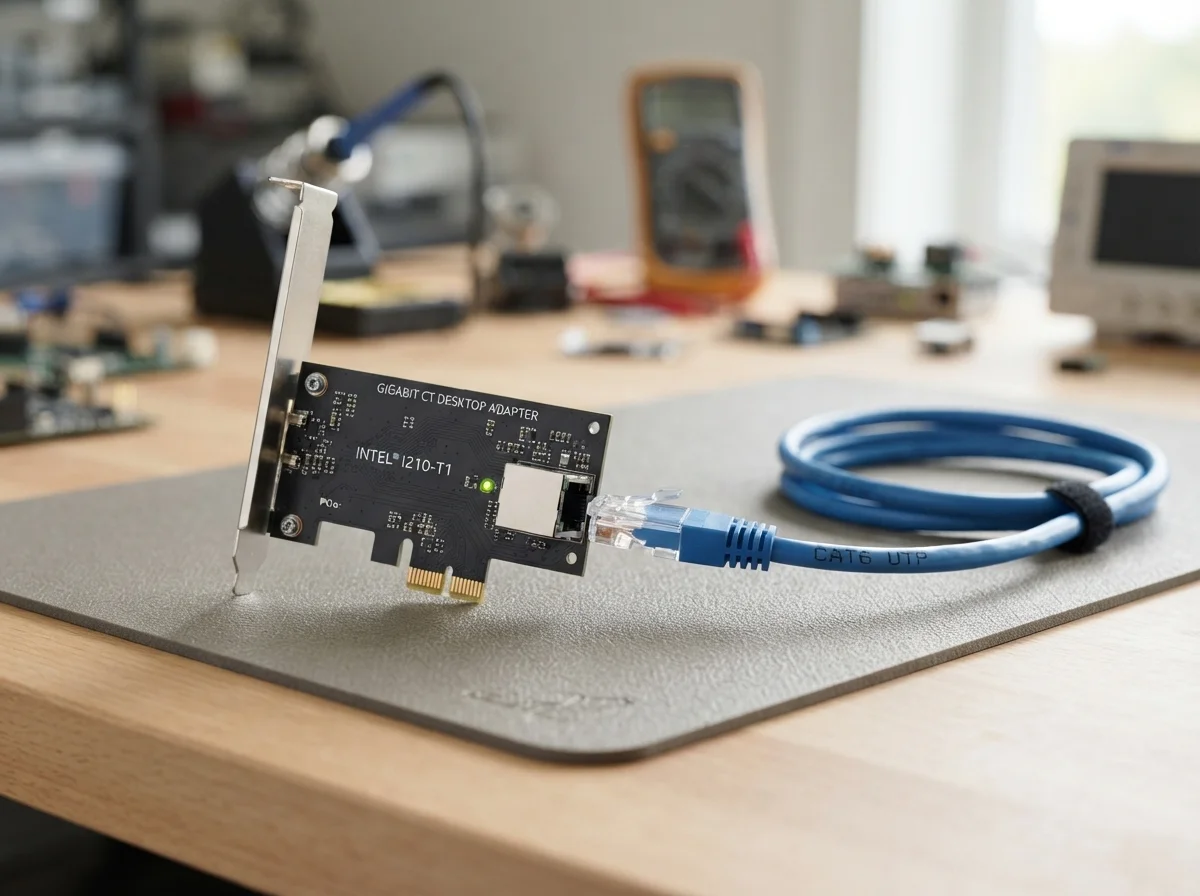
In some cases, the Ethernet adapter itself may be defective. Desktop computers may use an integrated motherboard network adapter or a separate network card, while laptops generally have integrated networking hardware.
Persistent connection failures after replacing the cable and checking the software may indicate a hardware problem.
How to Fix Ethernet / LAN Not Working
Step 1: Check the Ethernet Cable
Start with the physical connection. Disconnect the Ethernet cable and reconnect it firmly at both ends.
Inspect the cable for visible damage. If you have another compatible Ethernet cable, use it to determine whether the original cable is defective.
Step 2: Check the Router or Switch
Make sure the router or network switch is powered on and operating normally. Check the Ethernet port being used by the computer.
If another LAN port is available, move the Ethernet cable to that port and test the connection again.
Step 3: Restart the Network Equipment
Temporary router or network problems can sometimes be resolved by restarting the network equipment.
Follow the manufacturer's recommended procedure for restarting your router or modem. Allow the equipment sufficient time to reconnect to the Internet before testing the computer again.
Step 4: Restart the Computer
Restart Windows after checking the physical connection. This can clear temporary network configuration or driver problems.
Step 5: Check Windows Network Settings
Open Windows network settings and check the Ethernet connection status. Confirm that the Ethernet adapter is enabled and that Windows recognizes the wired connection.
If Windows reports that no Ethernet cable is connected even though the cable is attached, investigate the cable, ports, and network adapter.
Step 6: Check Device Manager
Device Manager can help determine whether Windows recognizes the Ethernet network adapter.
Look for the network adapter and check whether Windows reports a driver error or warning. If the adapter is missing, there may be a driver, hardware, or BIOS/UEFI configuration issue.
Step 7: Update or Reinstall the Network Driver
If the Ethernet adapter is recognized but does not work correctly, the network driver may need to be updated or reinstalled.
When possible, obtain the appropriate driver from the computer or network adapter manufacturer's official support website.
Step 8: Check the IP Address
A properly connected computer should normally receive an appropriate IP configuration from the network's DHCP server.
Advanced users can inspect the computer's IP address, subnet mask, default gateway, and DNS configuration using Windows networking tools.
If the computer has an unexpected or invalid network configuration, renewing the DHCP lease or correcting the network configuration may restore connectivity.
Step 9: Check DNS Configuration
If the computer appears to be connected but websites cannot be opened, DNS may be responsible.
Check the DNS configuration and test whether other network services are accessible. Avoid changing DNS settings unnecessarily if the existing configuration is working correctly.
Step 10: Run Windows Network Troubleshooting
Windows provides built-in network troubleshooting tools that can identify certain common configuration and connectivity problems.
Run the available network troubleshooter and follow the recommendations provided by Windows.
Ethernet Connected but No Internet
One of the most common situations is that Windows reports that Ethernet is connected, but websites and online services cannot be accessed.
This means the physical Ethernet connection may be working, while the problem could be related to the router, Internet service, IP configuration, DNS, firewall, VPN, or another network component.
First, check whether other devices connected to the same router can access the Internet. If all devices are affected, the problem is more likely to involve the router, modem, or Internet service.
Ethernet Says "Unidentified Network"
An "Unidentified network" message generally indicates that Windows has detected a network connection but cannot correctly identify or configure the network.
Check the Ethernet cable, router connection, IP configuration, network adapter driver, and DHCP settings. Restarting the router and computer can also resolve temporary network configuration problems.
Ethernet Keeps Disconnecting
An Ethernet connection that repeatedly disconnects can be caused by a damaged cable, loose connector, faulty router port, network adapter problem, driver issue, or power-management setting.
Start by replacing the Ethernet cable and trying another router or switch port. If the problem continues, investigate the network adapter driver and Windows power-management settings.
Ethernet Is Connected but Internet Speed Is Slow
A wired connection is not automatically guaranteed to provide maximum Internet speed. Network equipment, cable quality, adapter capabilities, router configuration, Internet service limitations, and background network activity can all affect performance.
Check the negotiated Ethernet speed reported by Windows or your network equipment. Also test the connection with another known-good cable and port if the speed appears unexpectedly low.
How to Test an Ethernet Connection
A systematic test can help determine where the problem originates.
- Check the Ethernet cable.
- Check the computer's Ethernet port.
- Check the router or switch port.
- Check whether Windows detects the network adapter.
- Check the network adapter driver.
- Check the IP address and gateway.
- Test access to another device on the local network.
- Test Internet access.
- Test another Ethernet cable.
- Test another computer using the same network connection.
Testing one component at a time makes it easier to determine whether the problem is with the computer, cable, router, network configuration, or Internet service.
How to Prevent Ethernet and LAN Problems
Proper maintenance can reduce the likelihood of wired network problems.
- Use good-quality Ethernet cables.
- Avoid sharply bending or crushing network cables.
- Keep Ethernet connectors clean and secure.
- Keep router and switch ventilation openings clear.
- Keep network adapter drivers updated when appropriate.
- Avoid unnecessary network configuration changes.
- Keep router firmware updated according to the manufacturer's guidance.
- Label network cables in larger installations.
- Replace cables that show physical damage.
- Regularly check important network equipment for signs of failure.
When Should You Contact a Computer Technician?
Many Ethernet problems can be resolved by replacing a cable, changing a router port, restarting network equipment, or correcting Windows configuration settings.
Professional assistance may be appropriate if the Ethernet adapter is not detected, the network connection repeatedly fails, the computer has possible motherboard or network-card damage, or network problems continue despite replacing the cable and testing different ports.
A technician can test the Ethernet adapter, network cables, router or switch, drivers, IP configuration, and other network components to identify the source of the problem.
Conclusion
Ethernet and LAN problems can be caused by physical connections, networking equipment, Windows settings, drivers, IP configuration, DNS, or hardware failures. The most effective approach is to troubleshoot systematically, starting with the simplest possibilities.
Check the Ethernet cable and network ports first, then verify the Windows network adapter, drivers, IP configuration, and router connection. Testing another cable, port, or computer can also help isolate the faulty component.
By following a structured troubleshooting process, many Ethernet problems can be resolved without replacing hardware unnecessarily. If the problem persists after basic checks, professional network or computer servicing can help identify more complicated hardware and configuration issues.
Related Articles
 Networking
How to Fix Slow WiFi on Windows: Complete Troubleshooting Guide
Web pages crawling over WiFi? Fix slow wireless speed with driver updates, channel changes, band steering and more.
 Networking
How to Set Up a Home Router: Beginner-Friendly Guide
From unboxing to a secure working network: configure your new router the right way in about 30 minutes.
 Networking
How to Fix "No Internet Access" or "Connected, No Internet" on WiFi
Your PC connects to WiFi but there's no internet. Here's how to diagnose and fix the yellow triangle for good.
Comments (0)
No comments yet. Be the first to share your experience!
Leave a comment