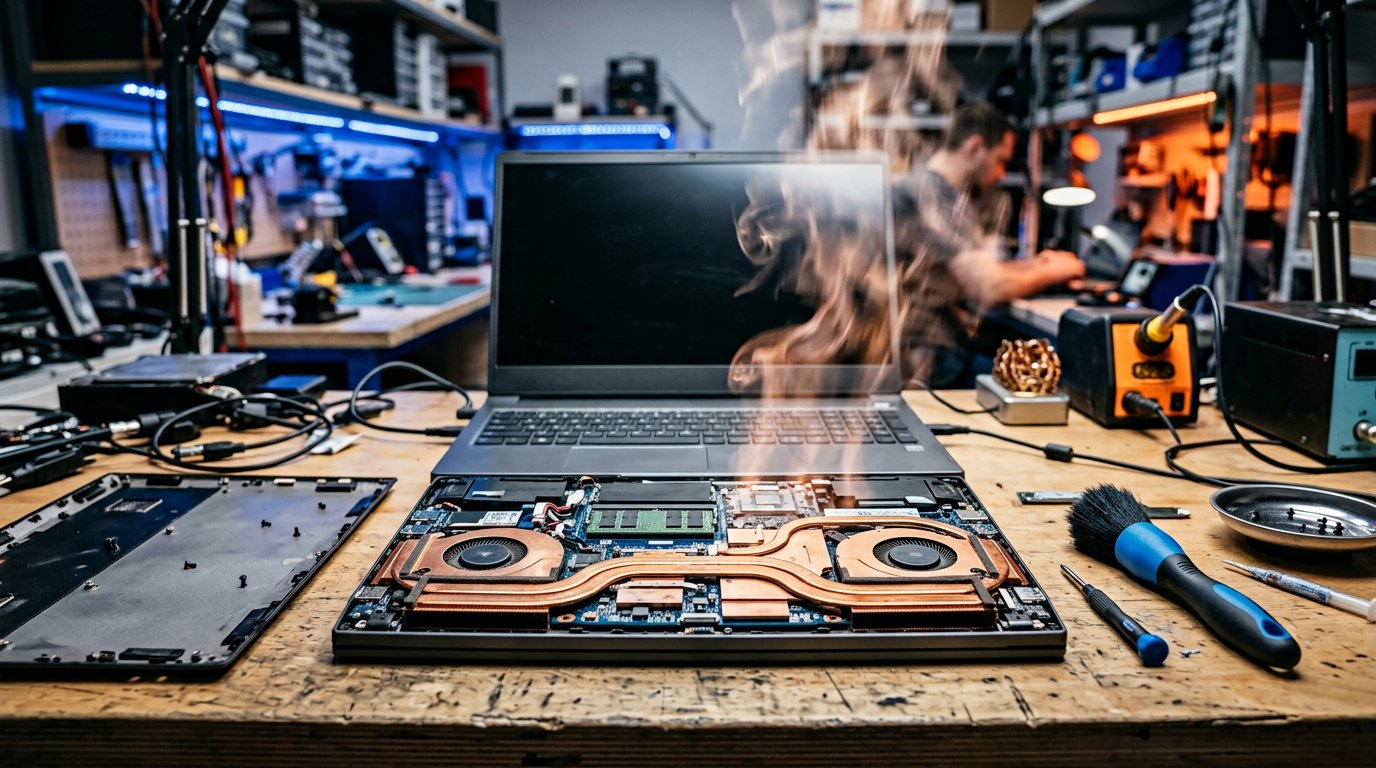
How to Fix a Noisy or Overheating Laptop Fan
Why is my laptop fan so loud?
Loud fans are the symptom, not the disease. Your laptop is overheating (or thinks it is), and the fan is running at maximum trying to cool it. Fix the heat and the noise follows.
Step 1: Check what's actually hot
Install HWiNFO or Core Temp (free, in our Download Center) and check CPU/GPU temperatures. Normal: 40–60°C idle, up to 90°C under load. If you're hitting 95–100°C, you have a real cooling problem.
Step 2: Clean the vents and fan
- Shut down, unplug, and remove the battery if possible.
- Open the bottom cover (usually Phillips screws — keep them organized!).
- Blow compressed air through the heatsink fins and fan, holding the fan blades still so they don't over-spin.
- Remove dust bunnies with tweezers or a soft brush. This alone fixes most loud fans.
Step 3: Repaste the CPU and GPU
If the laptop is 3+ years old, the thermal paste has dried out. Clean the old paste with isopropyl alcohol (90%+), apply a pea-sized drop of quality paste (e.g. Arctic MX-4), and remount the heatsink with even screw pressure.
Step 4: Fix airflow and software heat
- Use the laptop on a hard, flat surface — never on a bed or blanket.
- In Windows, set power mode to Balanced instead of Best performance.
- Check for mining malware and runaway background processes (see our malware guide).
- Undervolt the CPU (ThrottleStop for Intel) for 5–10°C drops on many models.
- Update the BIOS — some vendors shipped over-aggressive fan curves.
Step 5: Replace the fan if needed
If the fan rattles, whines or grinds even at low speed, the bearing is worn. Replacement fans are cheap and usually a 20-minute job — search by your exact model number.
Professional help
We offer laptop cleaning and repasting as part of our hardware services. Get a quote.
Related Articles
 Hardware
Computer Randomly Restarting: Common Causes and How to Fix It
A computer that randomly restarts can be caused by overheating, hardware failures, driver problems, Windows errors,…
 Hardware
Monitor and Display Problems: Common Causes and How to Fix Them
Monitor and display problems can include a blank screen, flickering, distorted images, incorrect resolution, no signal,…
 Hardware
Webcam Not Working: Common Causes and How to Fix It
Is your webcam not working on Windows? Learn how to troubleshoot camera problems, including a camera that is not…
Comments (0)
No comments yet. Be the first to share your experience!
Leave a comment